User Access Reviews
The UAR module automates the comparison of user records between systems to detect orphaned accounts, missing access, and mismatched attributes. It replaces manual spreadsheet-based access reviews with scheduled, repeatable comparisons.
How it works
A UAR comparison defines two datasets (e.g., HRIS vs. Identity Provider) and the fields to compare. When executed, the UAR engine loads both datasets, matches records by a key field (typically email or employee ID), and generates findings for any discrepancies.
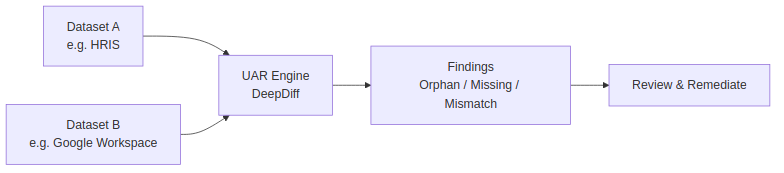
Finding types
| Type | Description | Severity |
|---|---|---|
| Orphan | Record exists in system A but not in system B. Example: employee in HRIS but no Google Workspace account. | Medium |
| Missing | Record exists in system B but not in system A. Example: Google account with no matching HRIS record (potential orphaned account). | High |
| Mismatch | Record exists in both systems but field values differ. Example: different department or role. | Low–Medium |
Configuring a comparison
- Navigate to Compliance → User Access Reviews.
- Click Create Comparison.
- Configure:
- Name — descriptive label (e.g., "HRIS vs Google Workspace Q1 2026").
- Dataset A — source system and data source (CSV upload, API, database query).
- Dataset B — target system and data source.
- Key field — the field used to match records (e.g.,
email). - Comparison fields — which fields to compare for mismatches (e.g.,
department,role,status).
- Save.
Scheduling automatic execution
Comparisons can be scheduled to run automatically:
- On the comparison detail page, click Schedule.
- Choose frequency: daily, weekly, or monthly.
- Select the time of day (UTC).
- APScheduler triggers the execution automatically.
Each execution creates a UARExecution record with its own set of findings.
Reviewing findings
- Navigate to the execution detail page.
- Findings are listed by severity with counts per type.
- For mismatch findings, click View Details to open the visual diff viewer — a side-by-side comparison highlighting field-by-field differences.
- For each finding, you can:
- Resolve — mark as addressed.
- Mark as false positive — the finding is expected and not actionable.
- Create incident — escalate to the security incident workflow.
- Add comment — document the resolution or reasoning.
Bulk remediation
From the findings list:
- Select multiple findings using checkboxes.
- Apply bulk actions: resolve, assign, mark as false positive, export to CSV.
- Bulk operations log each action individually in the audit trail.
Compliance integration
UAR findings serve as evidence for access governance controls:
- Link UAR executions to compliance controls (e.g., SOC 2 CC6.1, ISO 27001 A.9.2).
- Regular execution provides ongoing evidence that access reviews are performed.
- Findings feed into compliance status — unresolved critical findings may trigger compliance drift alerts.